
Set up a booking page so people can book time with you
A booking page is your own scheduling link, like Calendly: anyone who opens it picks a length, a day and a free time, and gets a calendar invite and a link to the call. Nobody needs a Freesbe account to book. This sets up a sales intro call for Maya at Northwind Traders, from the hours she takes calls to the line in her email signature. Anyone in a workspace on a paid plan can do it; guests can’t.
Before you start
Section titled “Before you start”- Bookings come with every paid plan.
- Connect your Google, Microsoft or Zoho calendar first in Preferences, so the page doesn’t offer times you’re busy elsewhere. Without one, only your hours and Freesbe meetings count. See Connect your calendar.
1. Make the page
Section titled “1. Make the page”- Open Meetings in the sidebar. Under Bookings, click Create booking page (or New booking page once you have one).
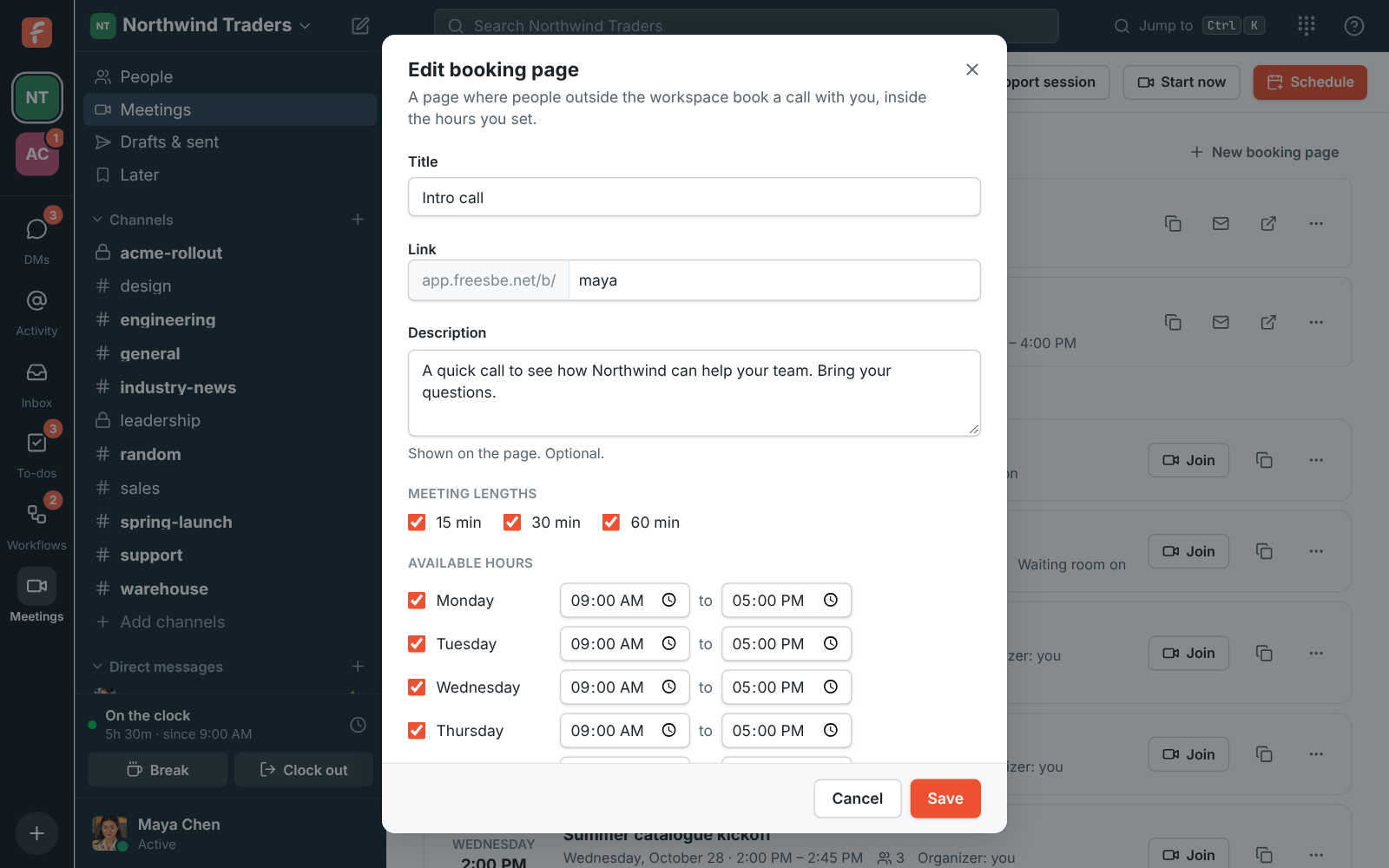
- Give it a Title, like Intro call. It’s the heading on the page.
- Pick the Link. Freesbe suggests one from your name; use 3 to 40 lowercase letters, digits and dashes. Each name can only be used once across Freesbe.
- Add a Description if you like, such as what the call is for.
- Under Meeting lengths, tick 15, 30 and 60 minutes, or only the ones you want to offer.
- Under Available hours, tick the days you take calls and set the hours, and check the Time zone.
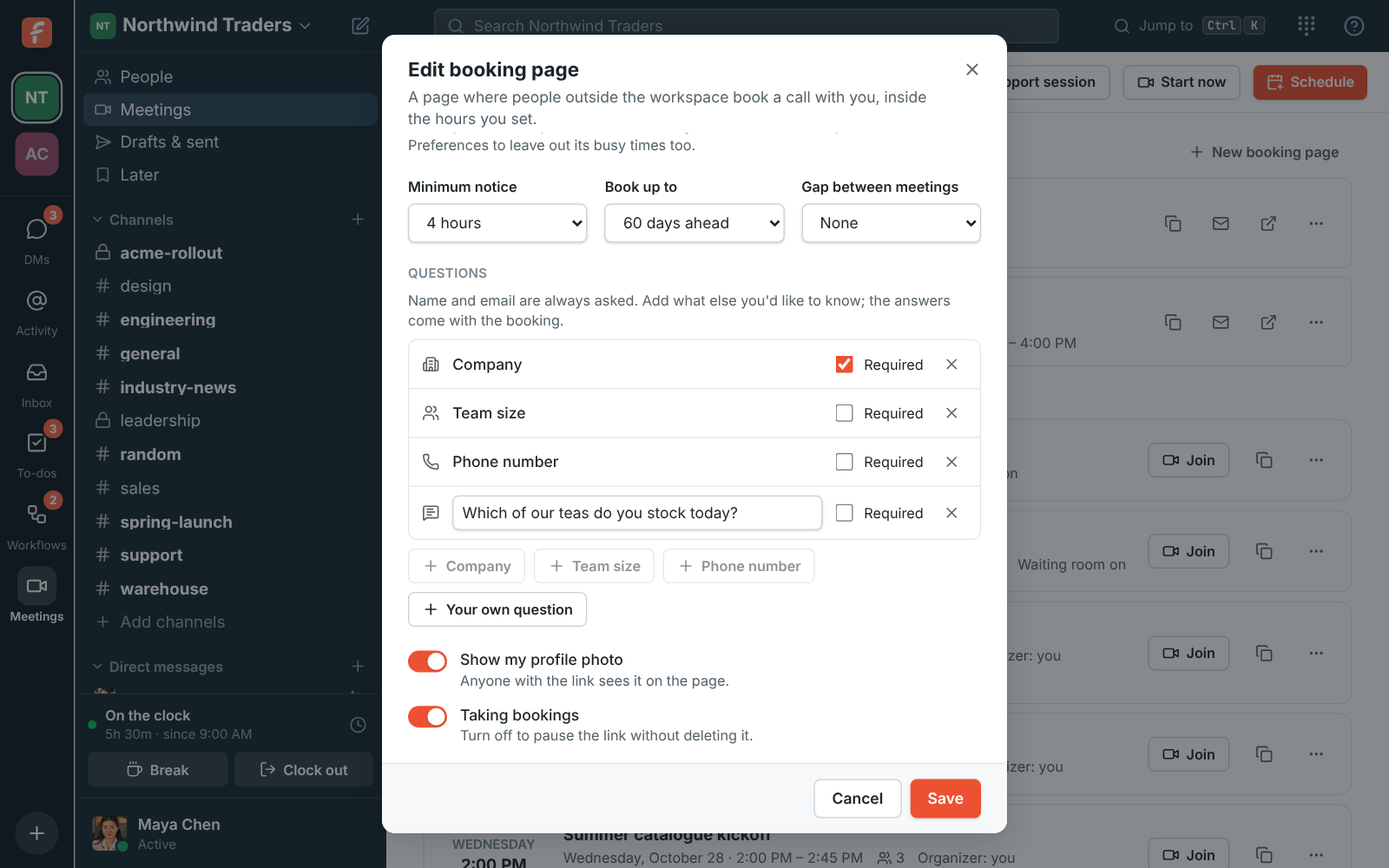
- Set the rest or keep the defaults: Minimum notice (4 hours), Book up to (60 days ahead, from 7 to 90), and a Gap between meetings so calls don’t run back to back.
2. Ask what you need to know first
Section titled “2. Ask what you need to know first”Name and email are always asked. Under Questions, click a button to add more: Company, Team size (they pick a range), Phone number, or Your own question, like Which products are you interested in? Tick Required for the ones they have to answer. Up to 6 questions.
The answers come with every booking: in your calendar invite, in the meeting’s description in
Meetings, in workflows that start When someone books time with you,
and in the booking.created event.
3. Keep the switches on
Section titled “3. Keep the switches on”Two switches protect a new page. Leave both on:
- Verify the booker’s email: the person gets a 6-digit code by email before the booking is made, and the time is held for them for 10 minutes. Nothing reaches your calendar until they type it.
- One upcoming booking per person: someone who already has a booking sees it, with Change time and Cancel meeting, instead of booking again.
Click Create page.
4. Share it
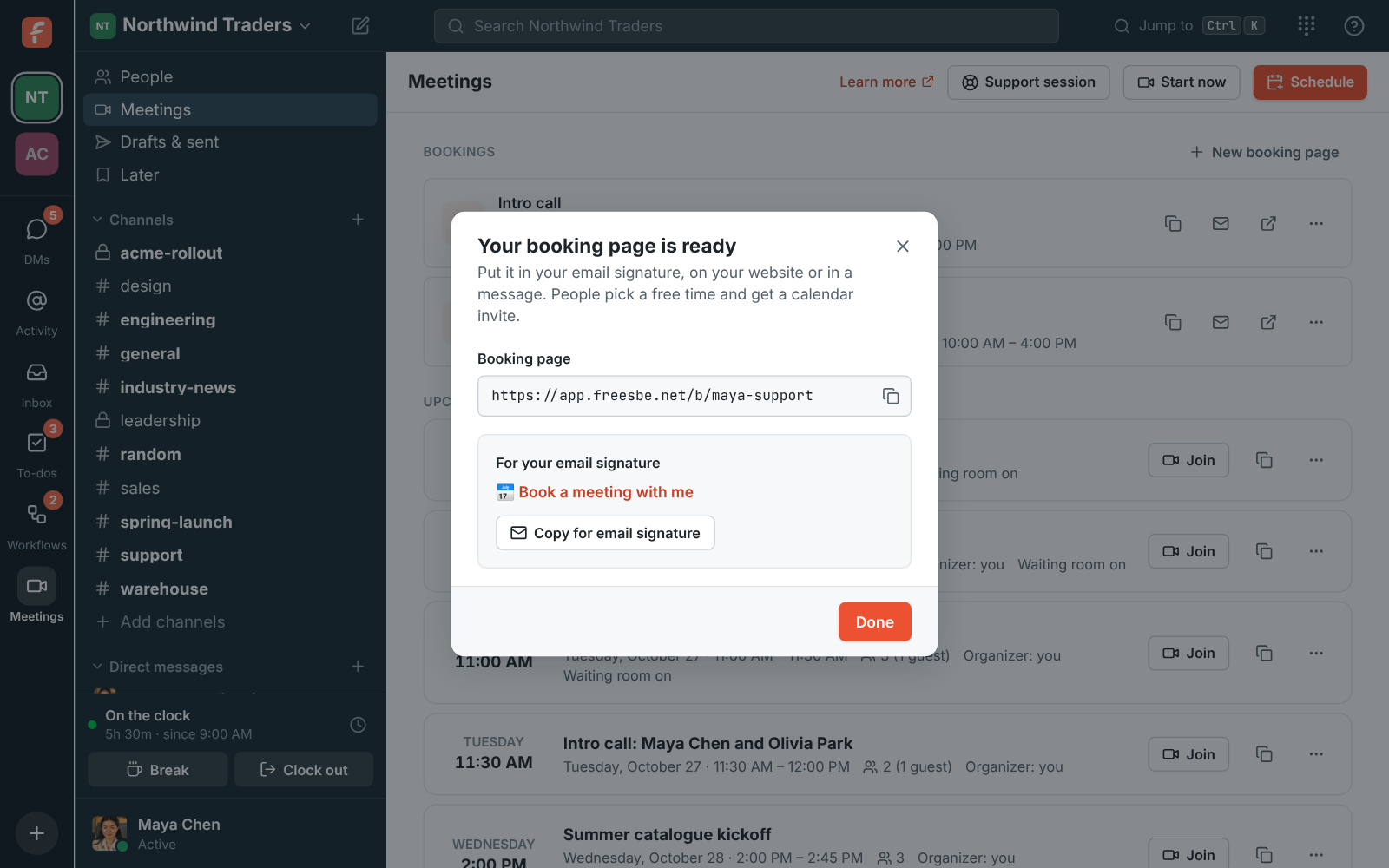
Section titled “4. Share it”Freesbe shows the link with a line for your signature. Copy copies the link; Copy for email signature copies a 📅 Book a meeting with me line that stays a link when you paste it into Gmail, Outlook or Apple Mail. Both are there later too, next to the page under Bookings.
Pasted into Slack, Teams, iMessage or Freesbe, the link unfurls into a card with your name and your workspace’s logo.
What happens when someone books
Section titled “What happens when someone books”The booking becomes a normal meeting organized by you, titled like Intro call: Maya Chen and Ravi Shah, listed under Upcoming in Meetings. You get an email with a calendar invite, their answers and note; they get an invite in their own time zone, a personal link that skips the lobby, and a Reschedule or cancel link. Both of you get a reminder about 10 minutes before. If they move or cancel it, you get an email right away and both calendars update.
- Make a second page with different hours for a different job, like a short Quick question page and a longer Product demo. You can have up to 10.
- Going away? Edit the page and turn off Taking bookings. People with a booking can still cancel; the page asks them to contact you for another time.
- Starts are offered every 15 minutes for 15-minute calls and every half hour for longer ones, in the visitor’s own time zone.
- On Corporate and Enterprise, an admin can move everyone’s pages to your company’s own address. See Put booking links on your own domain.
See Bookings for every setting.
Answers come from the Freesbe guides and are written by AI, so check the linked guide before relying on one. Please don't include personal details such as emails or passwords.