
Set up a business phone number
By the end of this, Northwind Traders has a main number that rings the front desk, everyone on the team has an extension colleagues can dial, and calls ring in the Freesbe apps with nothing to install. An owner or admin does it in the Admin Center; on Corporate and Enterprise a member with the Phone admin role can too, with a Billing admin for the part that costs money.
Before you start
Section titled “Before you start”- The phone system comes with the Phone system add-on, on top of a paid plan. If you don’t see Phone system from Freesbe in the Admin Center, your workspace doesn’t have the add-on yet, or it isn’t offered on your server.
- The phone system is for the United States and Canada for now, and a new one can call those two countries right away. Other countries open up once your account has been reviewed.
- The first time you buy a number you verify your identity, which phone regulations require. See Identity verification for phone numbers.
- A workspace uses either Freesbe’s phone system or its own sip.io account, not both. Disconnect sip.io first if you connected one.
1. Turn on the phone system
Section titled “1. Turn on the phone system”- Open the Admin Center from the workspace menu, then Phone → Settings.
- Under Phone system from Freesbe, pick the Country and click Turn on phone system.
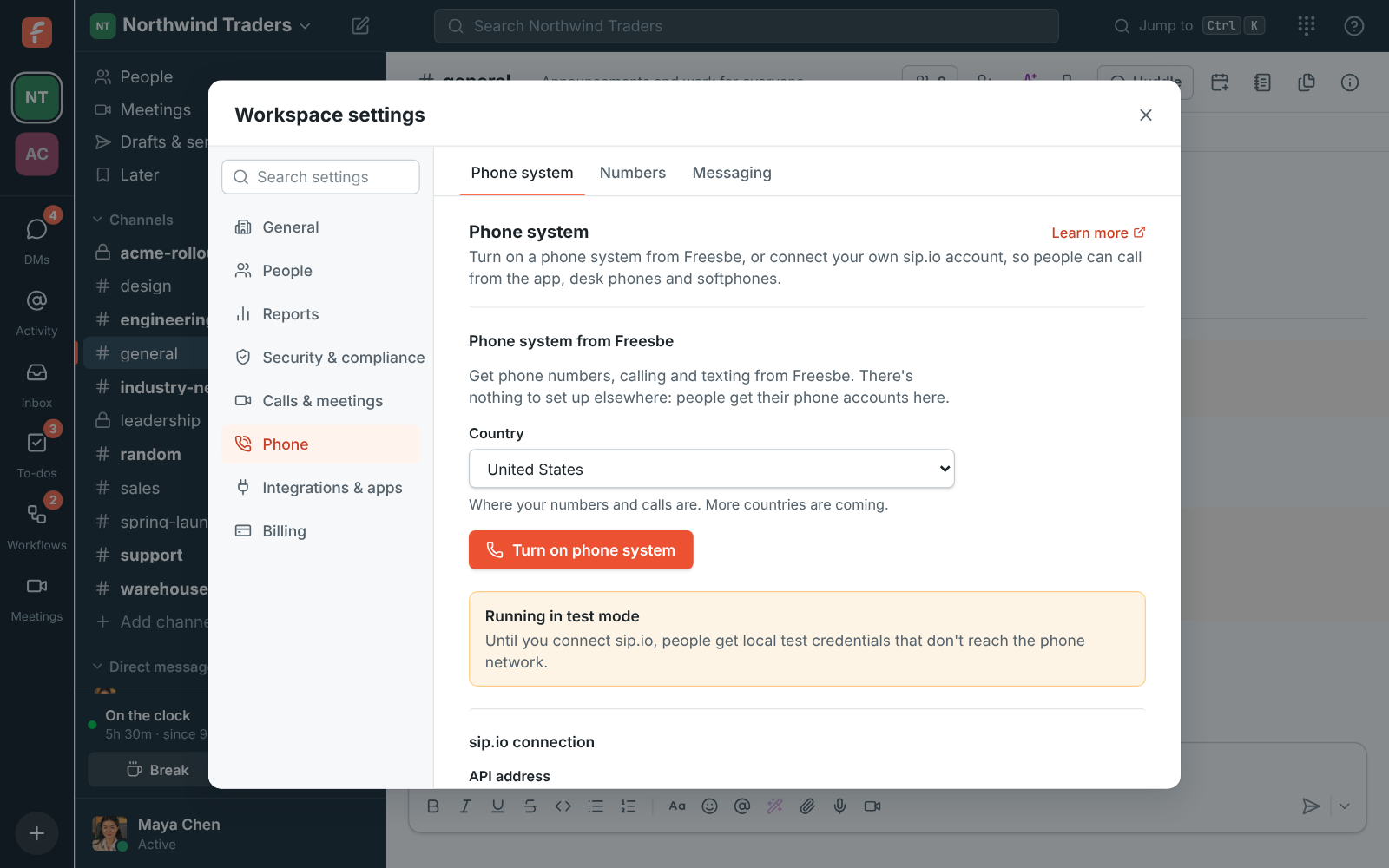
That’s the whole setup. Nobody signs up for anything elsewhere: people’s phone accounts are made for them the first time a number rings them.
2. Buy your main number
Section titled “2. Buy your main number”- Open Phone → Numbers and click Buy a number. Verify your identity if it’s your first number.
- Narrow the list down: change the Country, choose Local or Toll-free, or type an
Area code like
415. Show other numbers brings up a fresh set. - Pick a number, choose Who should it ring?, and click Get with the number on it.
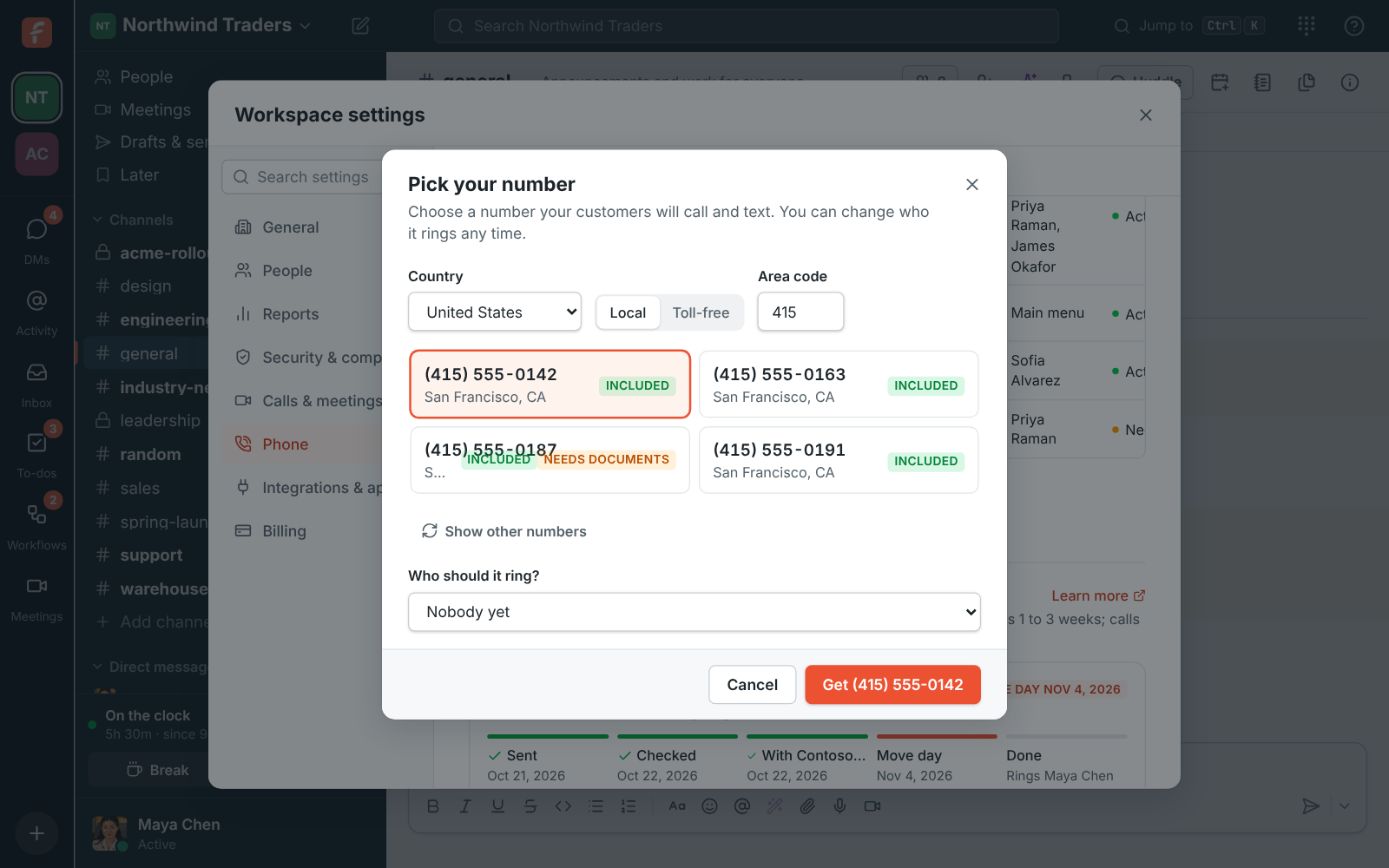
One local number comes with each person on the add-on, so while you have some left, local numbers show Included instead of a price. Toll-free numbers, and local numbers past the included ones, show their monthly price before you buy. A number marked Needs documents stays that way in the list until the carrier approves it.
3. Decide who answers it
Section titled “3. Decide who answers it”Click the number in Phone → Numbers to open its settings. Each change saves as you make it.
- Give it a Name people recognise, like Main line.
- Under Incoming calls, Rings is the person who answers. For a line several people share, choose the first person in Rings, then Also ring to add more, up to 20. Everyone rings together and the first to answer takes the call. If nobody answers, the call goes to the first person’s voicemail.
- Under Caller ID, choose Who can call out with it: Everyone, Only some people or Nobody.
If you’d rather answer with “press 1 for sales”, see Build a phone menu. For a line that gets more calls than people, see Set up a call queue for support.
4. Check everyone’s extension
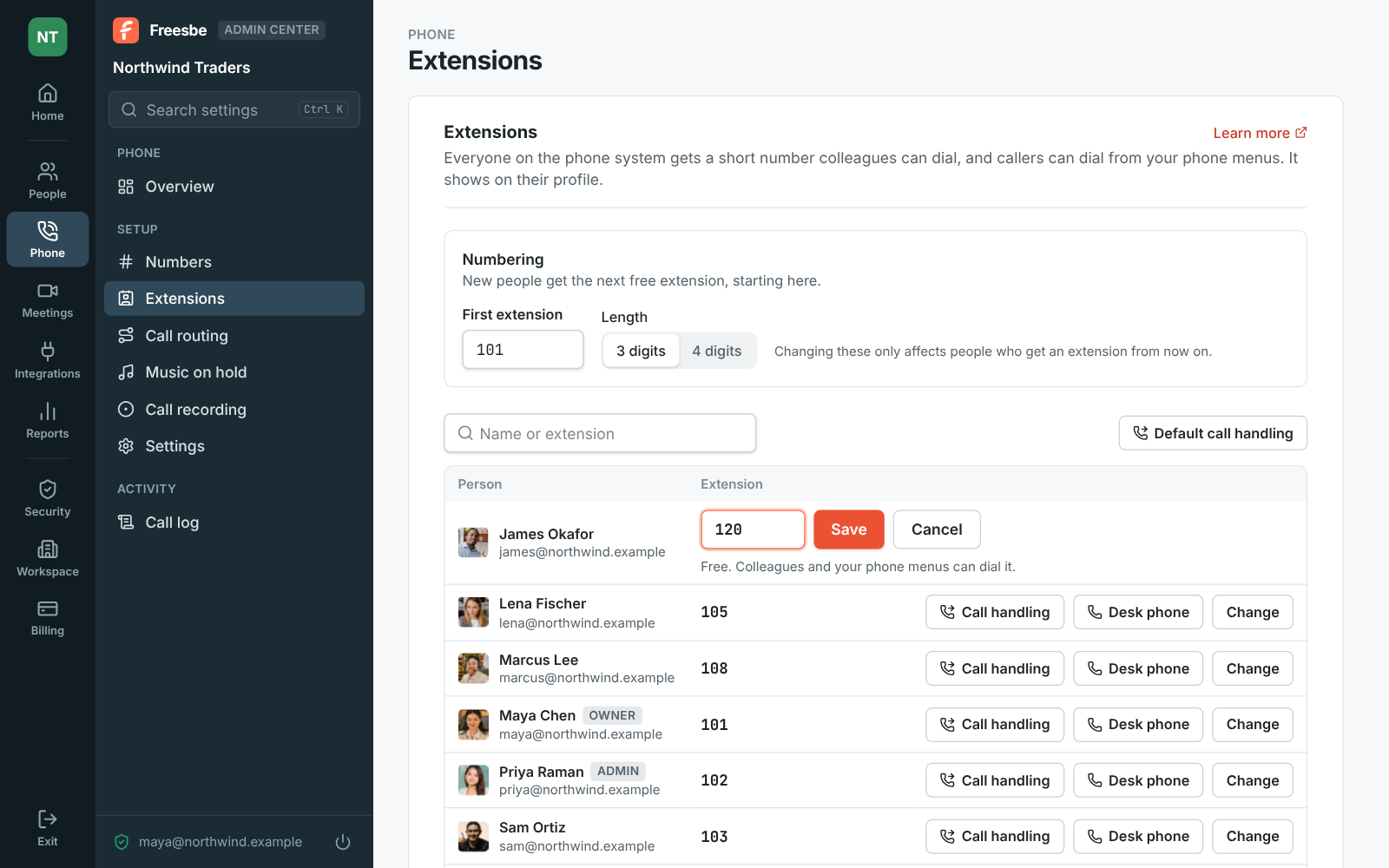
Section titled “4. Check everyone’s extension”Everyone on the phone system gets an extension on their own, starting at 101, and so does anyone who joins later. It shows on their profile, and colleagues dial it from the phone’s keypad or click Call with the number on it.
Open Phone → Extensions to see them all. Numbering sets where new extensions start and whether they’re 3 or 4 digits; Change next to a person gives them a specific one, say 120 for the warehouse. Extensions can’t start with 0 or 9, which reach outside lines and emergency calls.
5. Tell the team what to expect
Section titled “5. Tell the team what to expect”- Calls ring in the browser and the desktop app, and the browser asks once to use the microphone. The phone button in the top bar opens the keypad, with Recent, People and Voicemail tabs.
- Preferences → Calls & audio → Phone is where each person picks how their calls ring (When a call comes in), their voicemail greeting and where they work from, for 911.
- Someone who wants a desk phone asks you: in Phone → Extensions, click Desk phone next to them and copy the SIP server, username and password onto the phone.
- Install the mobile app so calls follow people away from their desk. See Take calls on your phone.
What happens next
Section titled “What happens next”Every call shows up in Phone → Call log a few minutes after it ends. Before customers start calling, set your business hours and add your office addresses for 911. To keep the numbers customers already know, see Bring your numbers from another provider.
See a phone system from Freesbe for every setting.
Answers come from the Freesbe guides and are written by AI, so check the linked guide before relying on one. Please don't include personal details such as emails or passwords.