
Set up your voicemail and greeting
On the phone system from Freesbe, voicemail is already yours: callers you don’t answer hear a greeting, leave a message, and it lands in Freesbe written out. This gets your greeting sounding like you, puts voicemails where you’ll see them, and sets how long your phone rings first. Anyone with a phone line does it in Preferences; the last section is for admins.
1. Hear what callers hear now
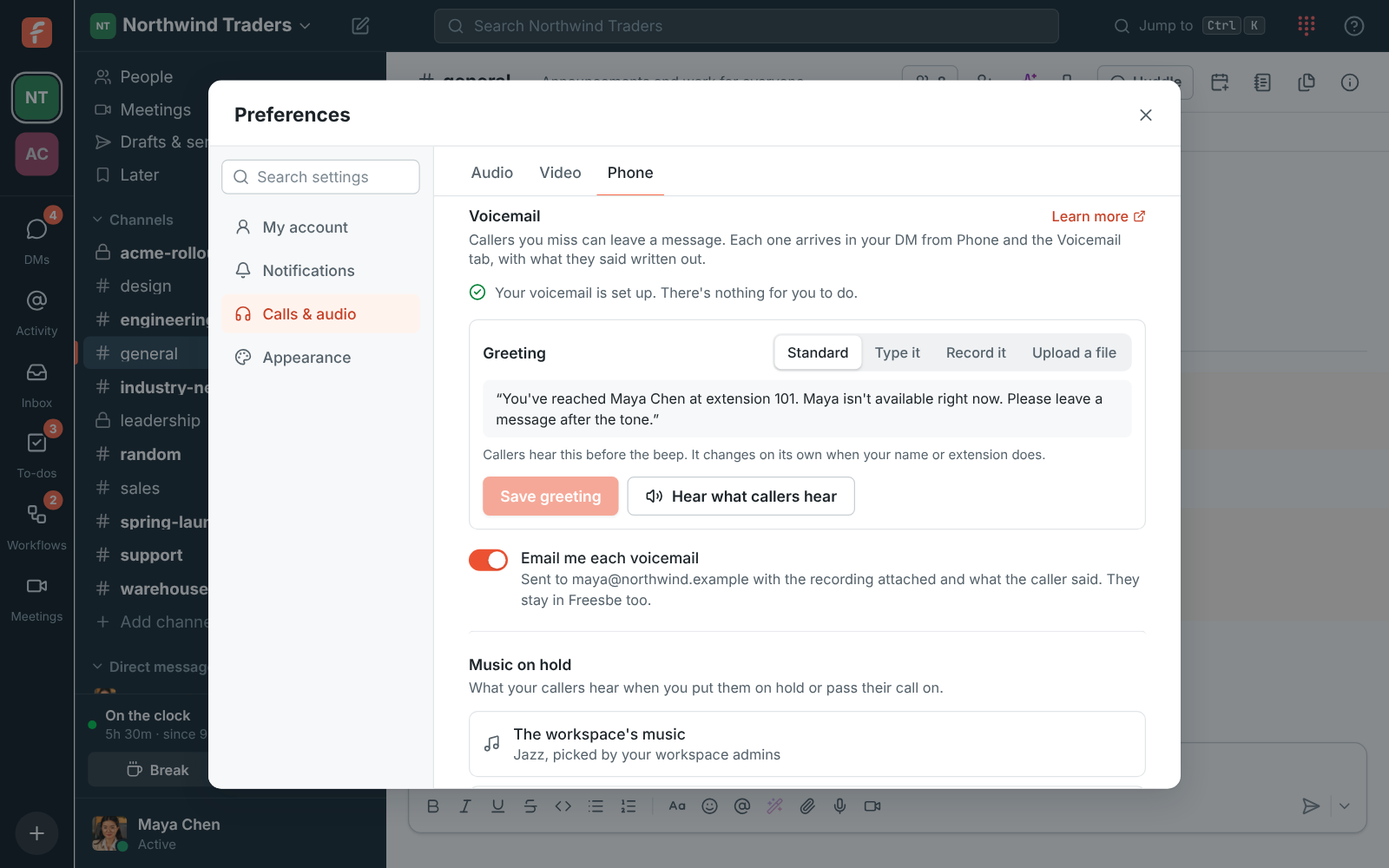
Section titled “1. Hear what callers hear now”Everyone starts with the standard greeting, which says who they reached and your extension: “You’ve reached Maya Chen at extension 101. Maya isn’t available right now. Please leave a message after the tone.” It keeps up on its own when your name or extension changes. Open Preferences → Calls & audio → Phone and, under Voicemail, click Hear what callers hear to check it.
2. Make it your own
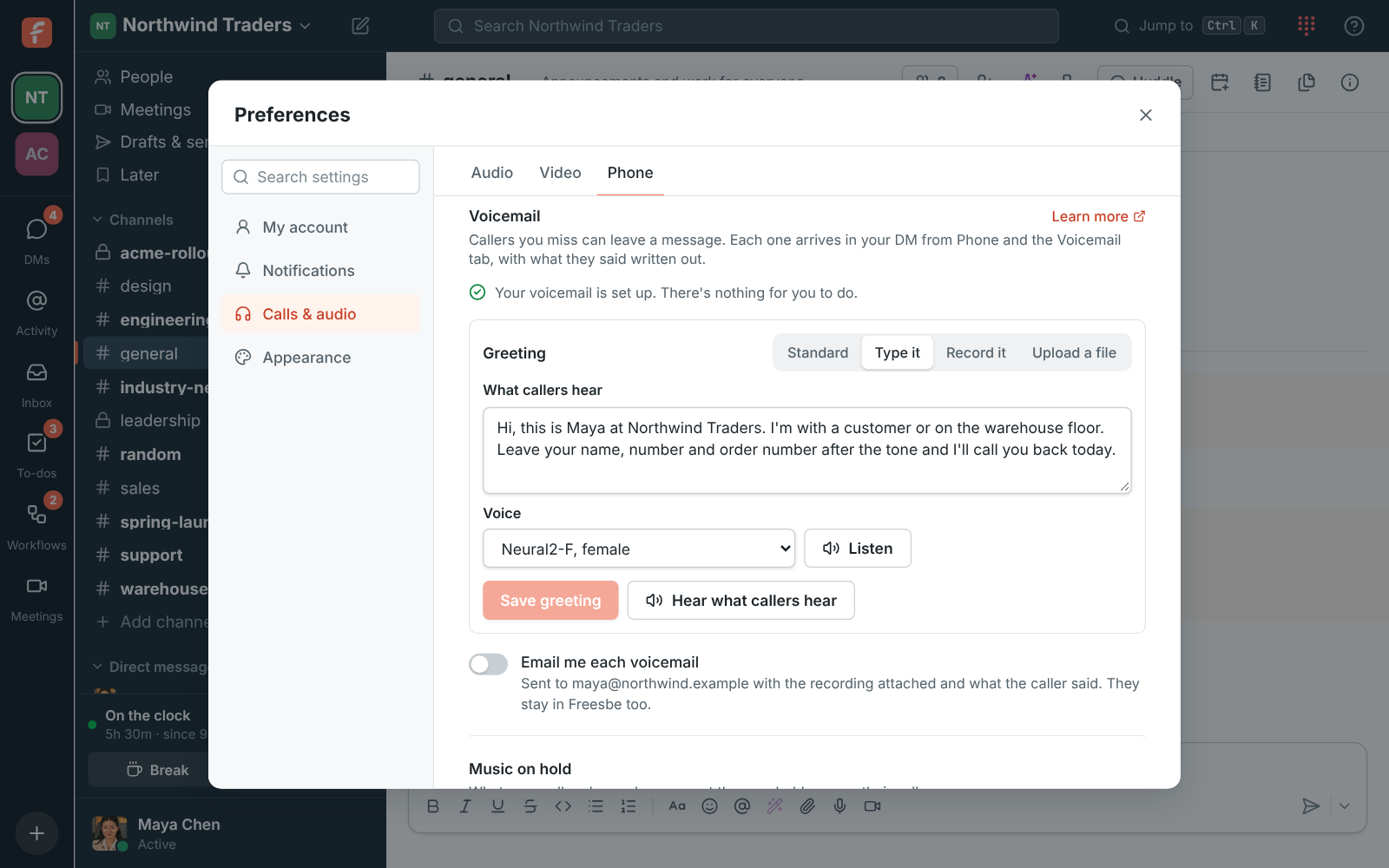
Section titled “2. Make it your own”Next to Greeting, pick how to make yours:
- Type it: write what callers hear, pick a voice, and press Listen to hear it read out. Good for a greeting you’ll change often, like when you’re away.
- Record it: say it into your microphone, up to 5 minutes.
- Upload a file: an MP3, M4A or WAV file of up to 5 minutes.
Press Save greeting, and callers hear it from their next call. Pick Standard and save to go back to the standard one. Greetings you type, record or upload count toward the phone greetings your plan makes a day, shared with phone menu greetings; the standard one doesn’t.
3. Decide where voicemails reach you
Section titled “3. Decide where voicemails reach you”Each voicemail comes to you in two places, with nothing to turn on:
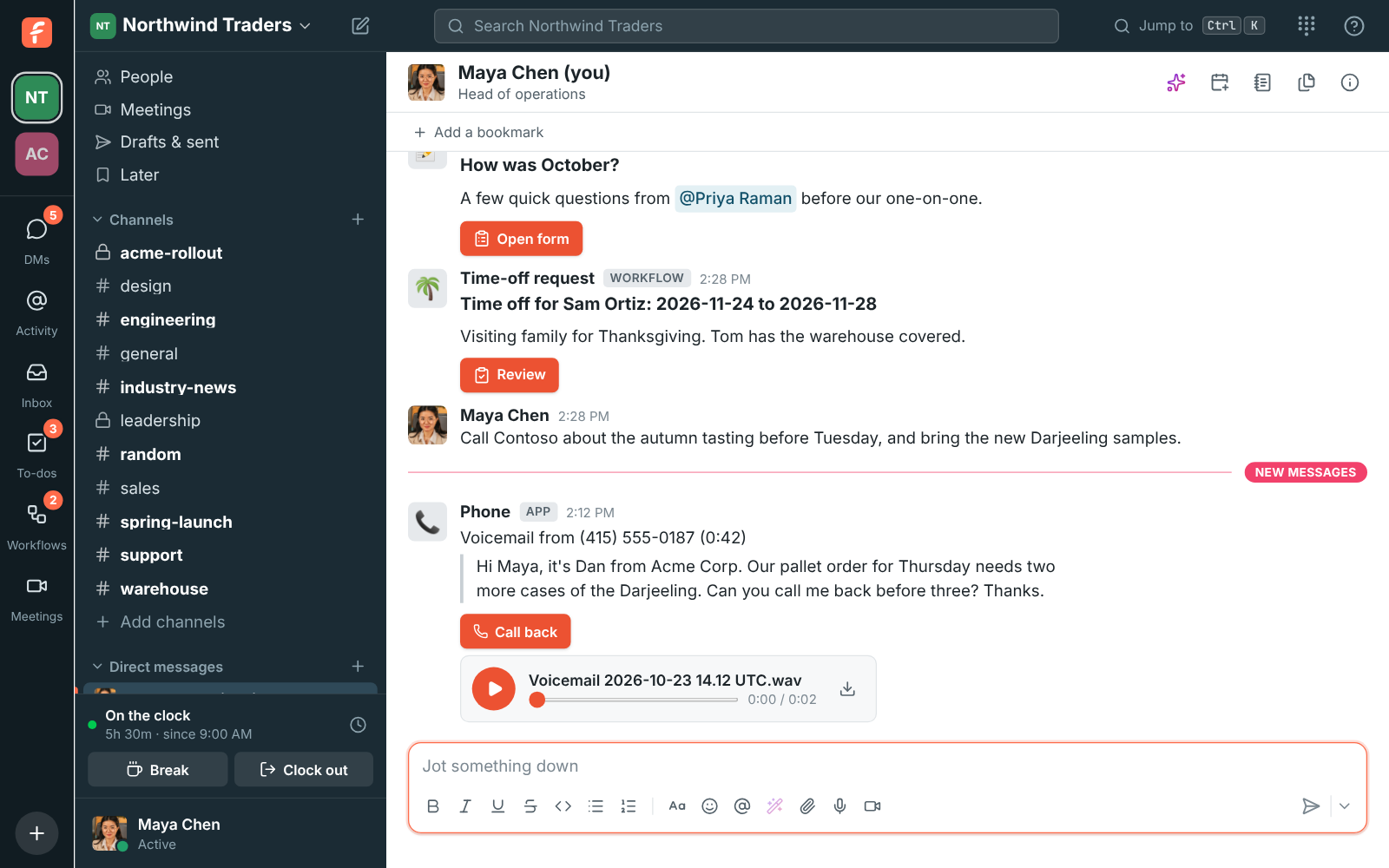
- In your own DM, as a message from Phone: Voicemail from (415) 555-0142 (0:42), with the recording to play, what the caller said written out under it, and a Call back button. You get a notification like for any message. A colleague who called shows by name and extension.
- In the phone’s Voicemail tab, newest first, with new ones marked. Playing one marks it heard everywhere, and the phone button in the top bar counts new voicemails and missed calls in red.
To get each one by email as well, turn on Email me each voicemail under Voicemail. The email goes to the address you sign in with, with the recording attached, who called, how long it is and what they said. A recording over 10 MB comes as a link instead. Leave it off to keep voicemails in the app only.
4. Set how long your phone rings first
Section titled “4. Set how long your phone rings first”Under When a call comes in on the same page, What a caller gets shows how long a caller waits before voicemail. Out of the box, the device you’re using rings first, your other devices join after 10 seconds, and the call goes to voicemail after 25. Change the voicemail time, or send unanswered calls to A teammate or A phone number instead. See Follow-Me.
For admins: voicemail for a number
Section titled “For admins: voicemail for a number”Voicemails for a shared number go to the voicemail of the first person it rings, so pick that person with care. In the Admin Center:
- Open a number in Phone → Numbers, turn on Follow business hours, and set After hours and On holidays to voicemail, so callers can leave a message when nobody’s in. See Set business hours and holidays.
- In a phone menu, give a key, usually 0, the Voicemail action for someone.
- In a ring group, set If no one answers to someone’s Voicemail.
Voicemails are written out by the same speech to text as meeting transcripts. If an admin turns transcripts off in Workspace settings → Calls & meetings → Recordings, voicemails come with the recording only.
See Voicemail and Your voicemail greeting for the details.
Answers come from the Freesbe guides and are written by AI, so check the linked guide before relying on one. Please don't include personal details such as emails or passwords.